Launching the Simulator with a Robot
Launch a simulation with a robot on the OLO platform.
The OLO Platform is a suite of tools for controlling and programming a robot. The quickest way to use it is with a robot in the simulator.
Launching the simulator with a robot
-
Click the Launch Sim button in the top navigation bar or in the main body of the page.
-
Follow the steps to create your sim world and choose which robot to use.
-
Select the world (environment) you want your robot to be in. Choose a world and click Next: Select Robots.
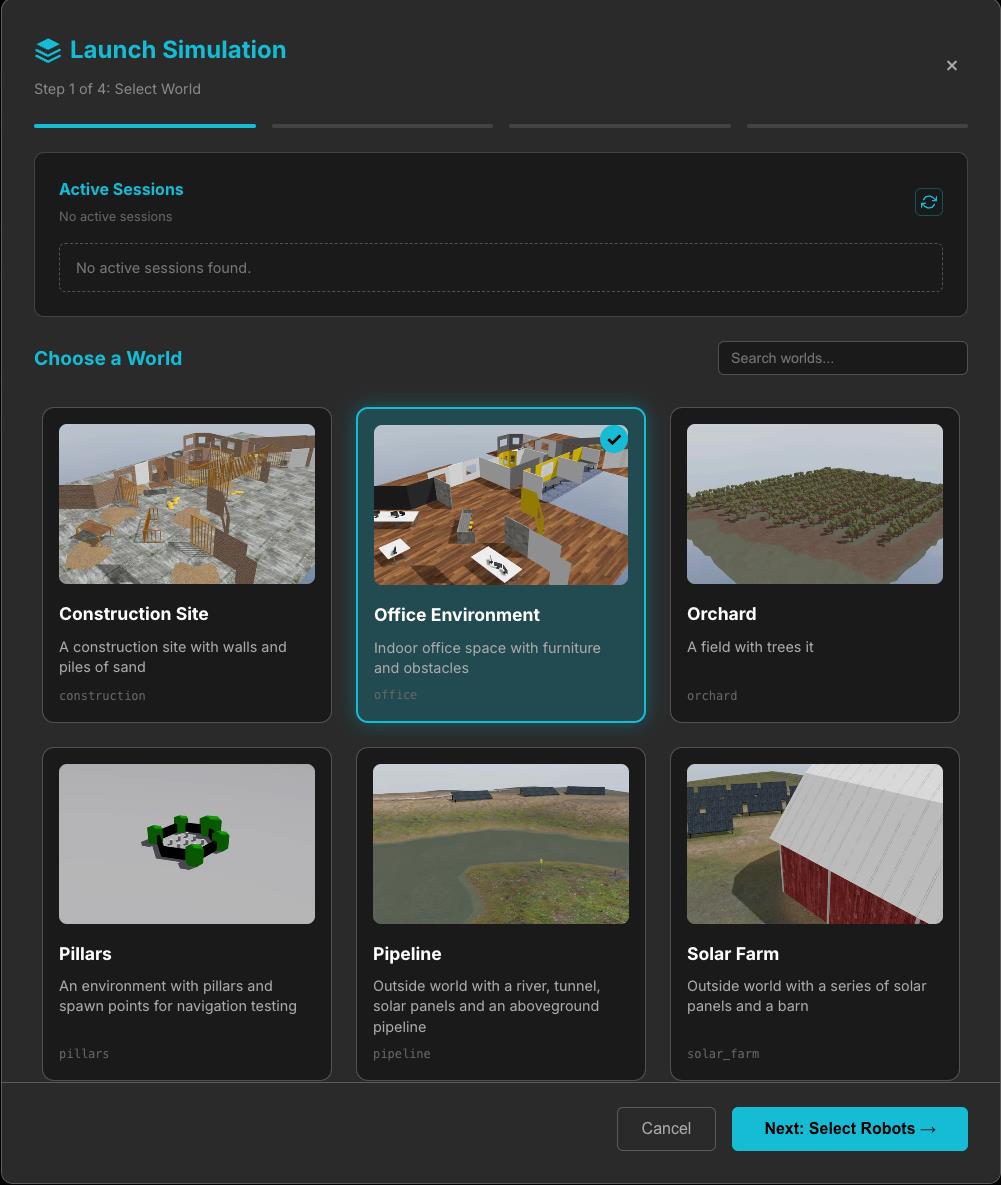
-
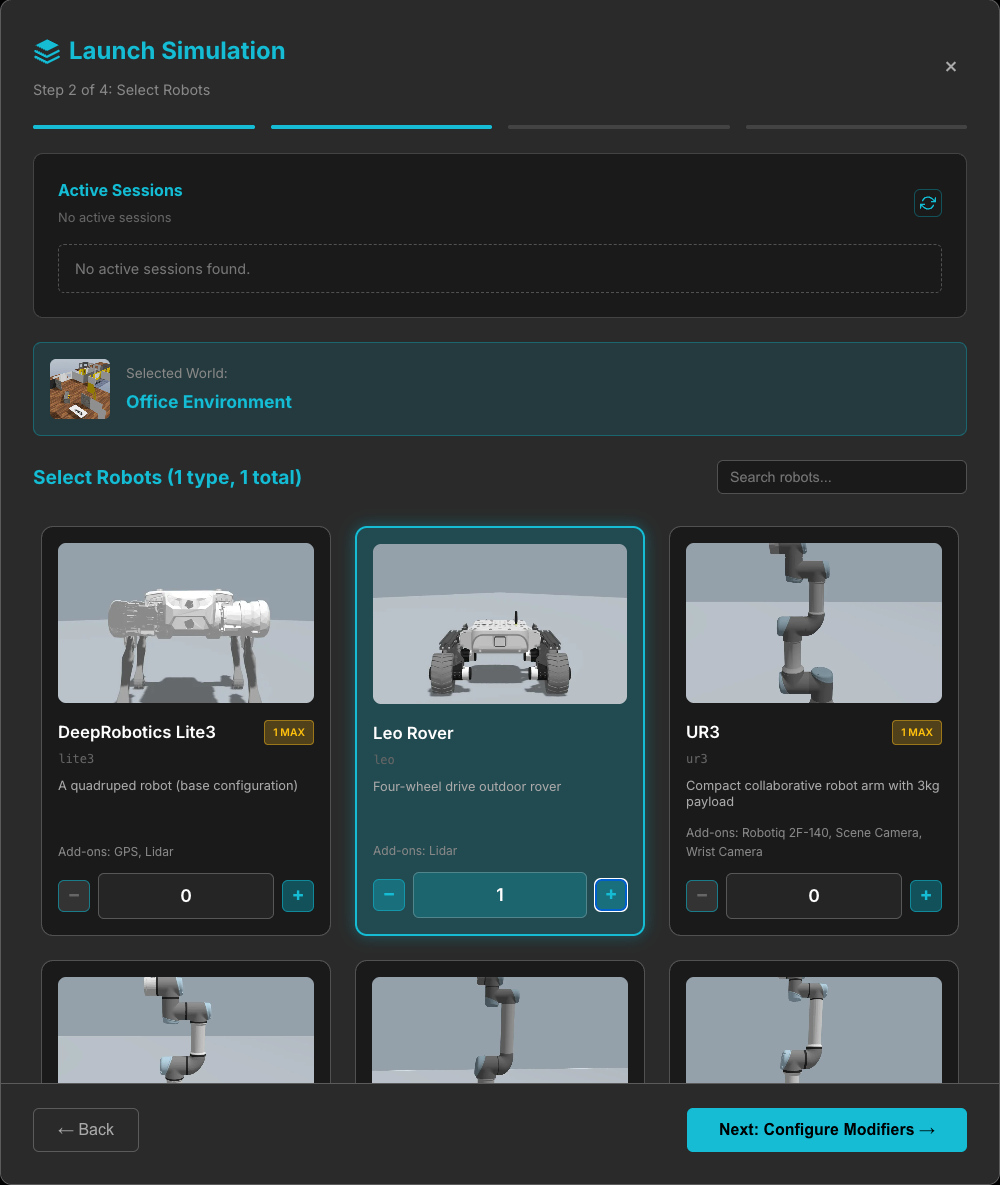
Select the robots you want to simulate. You can have multiple robots and mix and match. You cannot currently mix a quadruped with an arm in the same world.
Press the + button to add the robot of your choice. Click Next: Configure Modifiers.
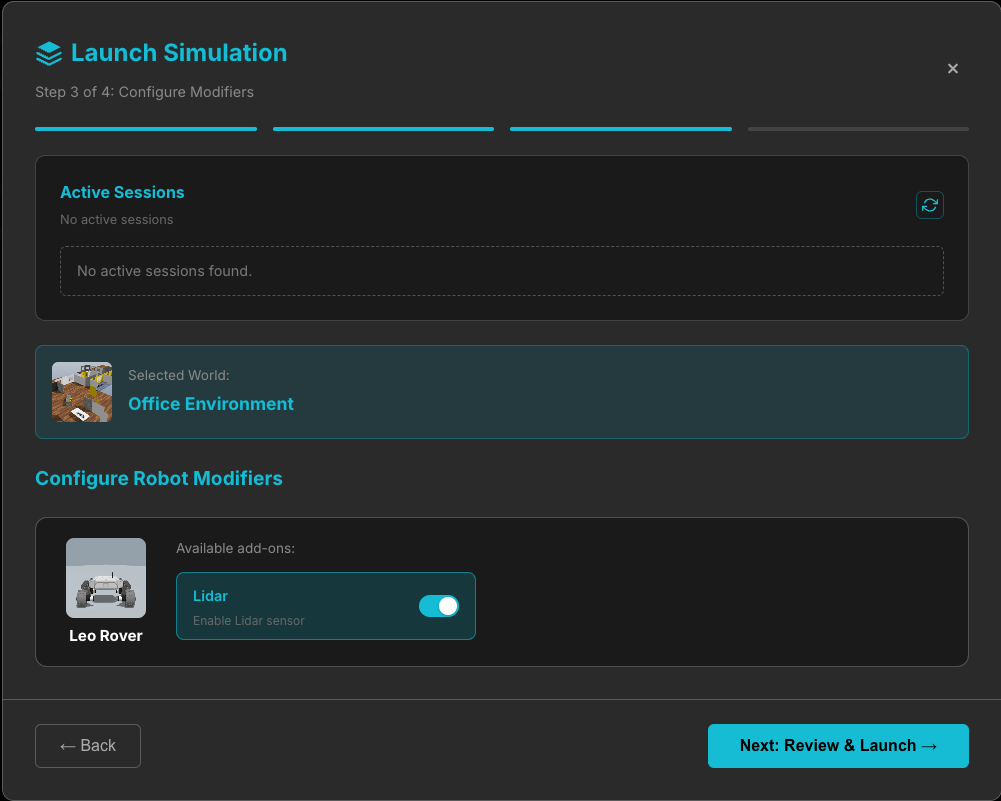
- Configure the modifiers for the robot. This can include a range of sensors depending on the chosen robot. Click Next: Review & Launch.
- Review your selections and click Launch Simulation.
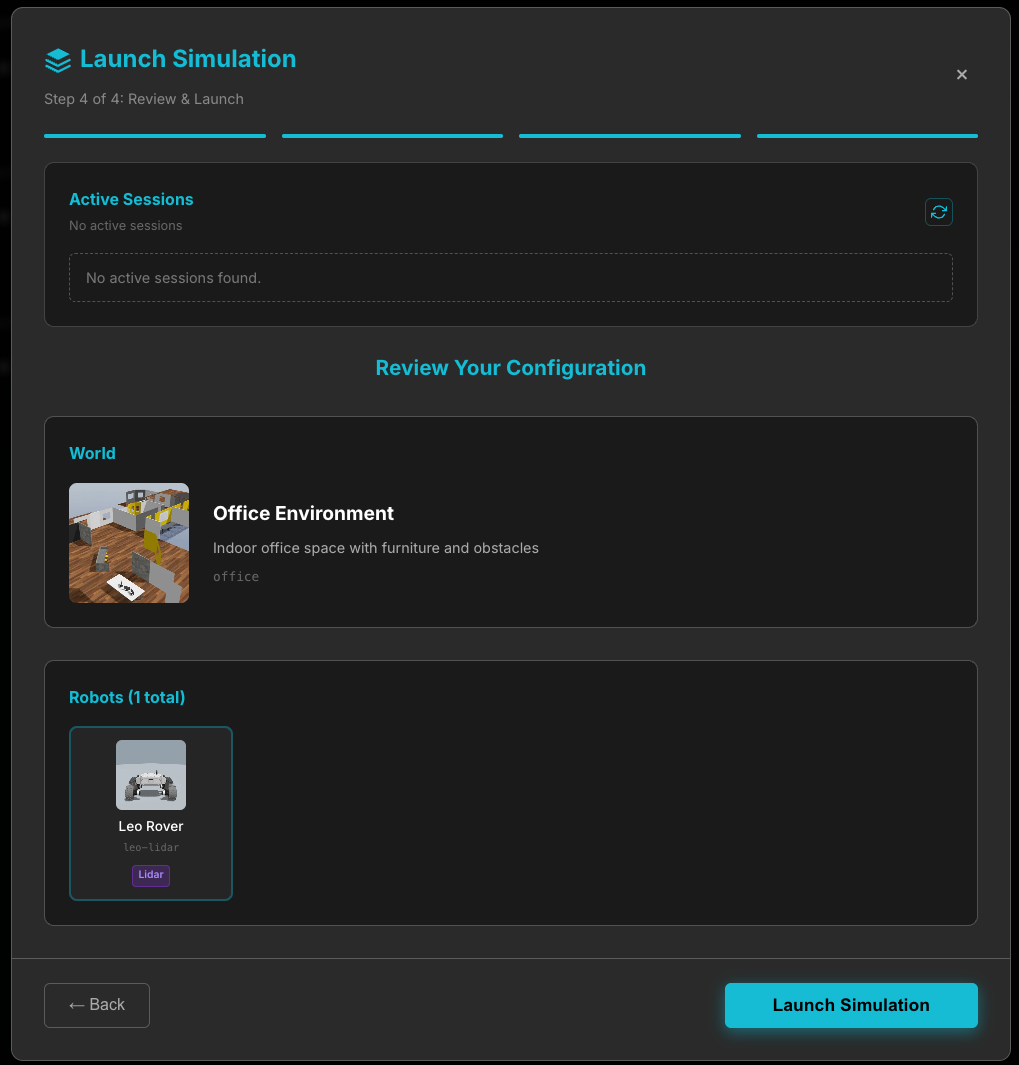
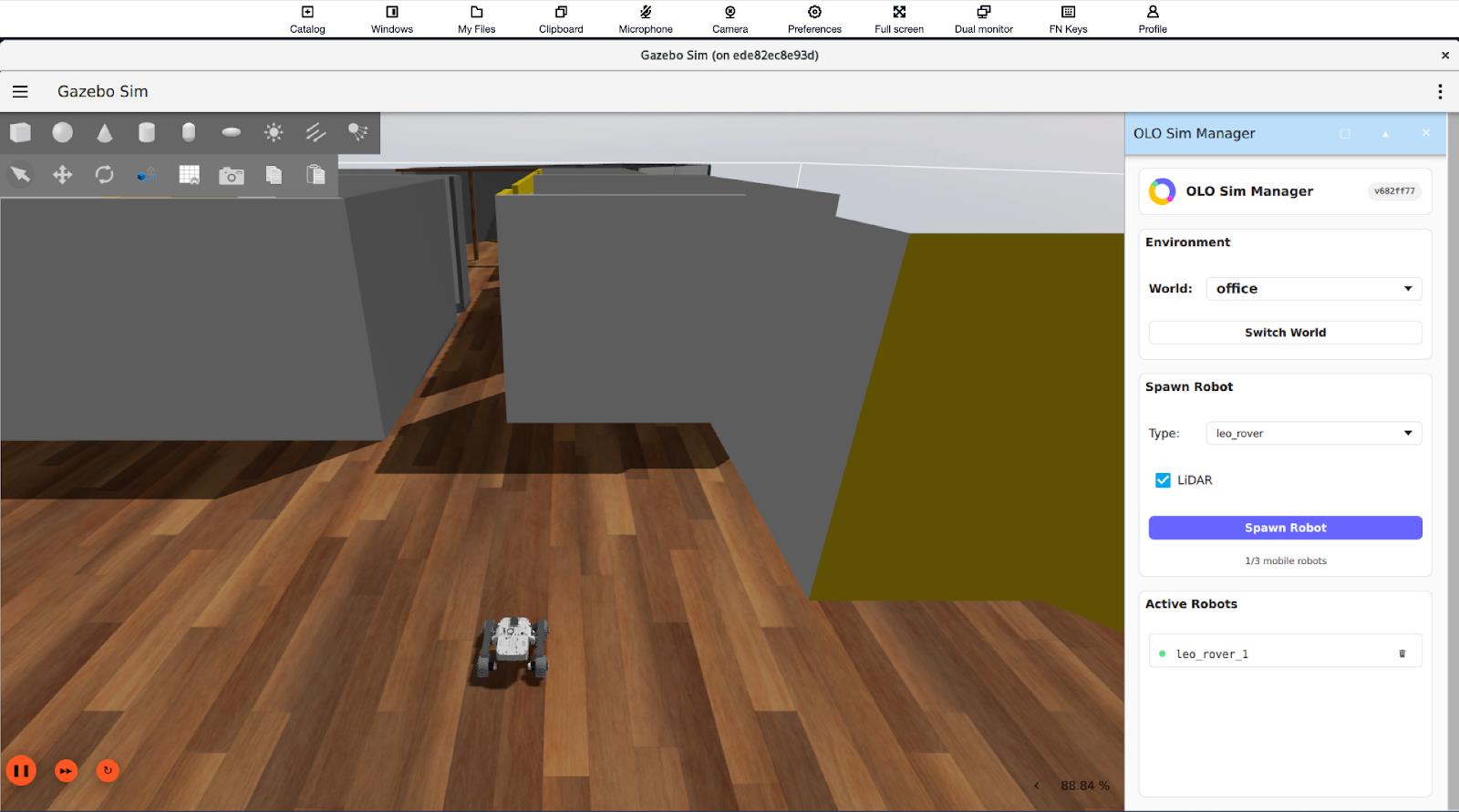
- The simulation window will open on the OLO Dashboard. A Gazebo Simulator instance is being prepared based on your options. Depending on cloud services, this can take up to two minutes to load. When the simulation has loaded, you will see the world and robot you selected.
-
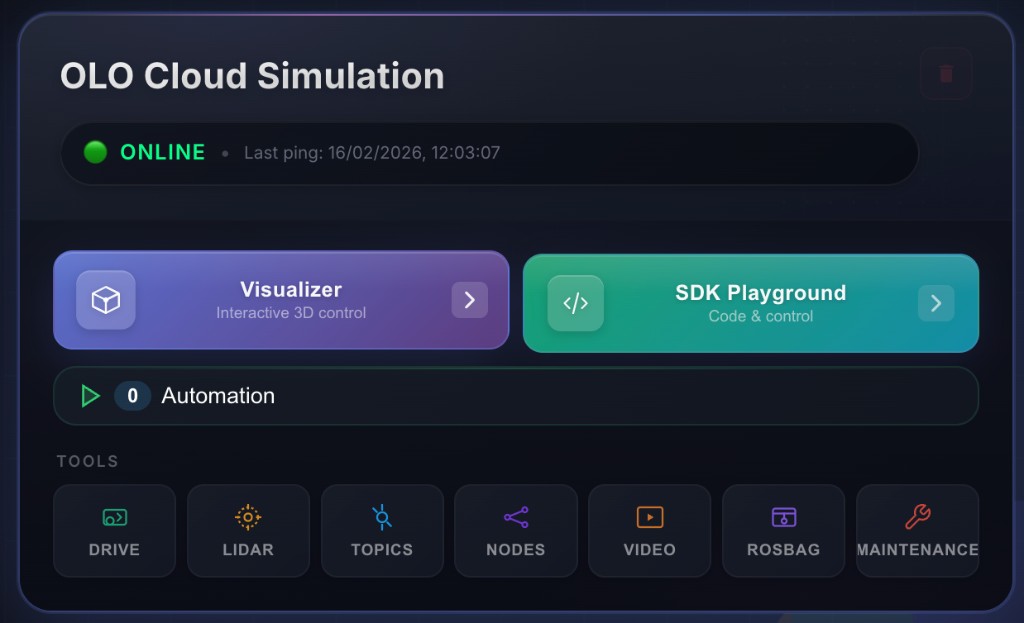
The main robot menu panel will load alongside the sim window on the OLO dashboard.
-
To start moving the robot and viewing feeds from its sensors, open the Visualizer by clicking the button on the dashboard.