
Introduction to the SDK Playground
Browser-based development environment for robot programming and rapid prototyping.
The SDK Playground is an integrated, browser-based development environment for robot programming with no local setup. It supports modular execution and rapid prototyping.
You can run example scripts in simulation or export scripts from the visualizer into the SDK and edit them there. The SDK includes an AI code editor to help you write and edit scripts, which is useful for testing ideas quickly.
In this tutorial we will:
- Introduce the SDK Playground
- Load sample scripts with a robot in the simulator
- Edit scripts with the AI assistant
Steps
-
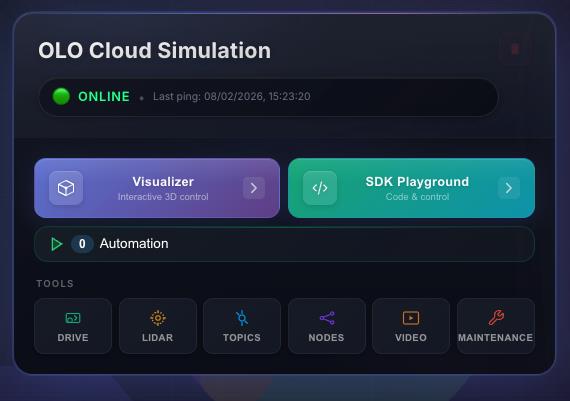
Open a simulation with a mobile robot and LiDAR enabled. See Launching the simulator if you need help.
-
Click the SDK Playground button to open it.
-
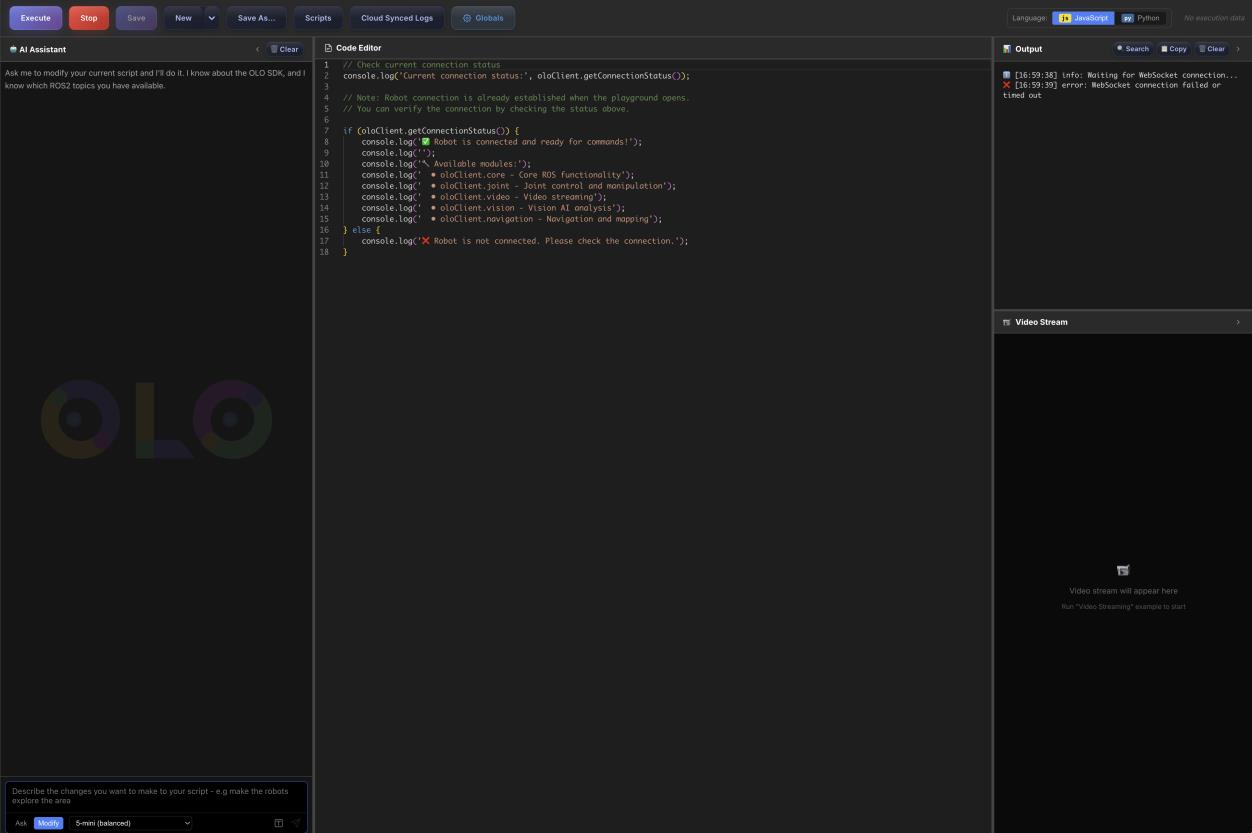
You will see the interface for loading, editing, and running code.
-
Get familiar with the layout:
- Centre: Script Editor
- Top right: Output logs
- Bottom right: Video stream
- Left: AI Assistant
- Top: Controls for loading scripts (yours or examples), saving, running, and stopping
- Top right: Toggle to change programming language
-
Click Scripts at the top.
-
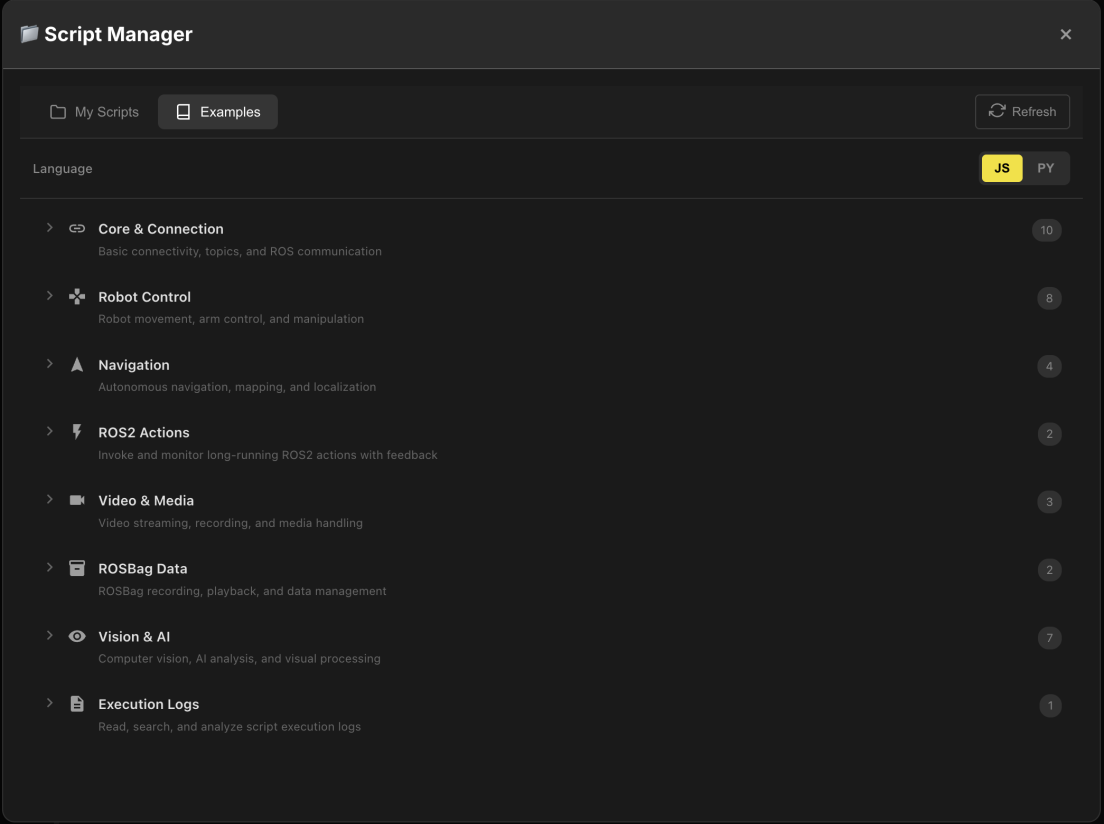
A popup shows your saved scripts or example scripts. Choose Examples to see the list of pre-defined scripts.
-
Open the Video & Media folder and select Video Streaming. The script opens in the Script Editor. Click Execute to run it; the robot’s camera feed should appear in the Video Stream panel on the right.
-
Try other example scripts: select one and click Execute in the main SDK window.
-
To create your own script, use the AI Assistant. You can use the sample questions in the window or type your own prompt. Answer the AI’s follow-up questions and it will generate the script. If the result isn’t right, ask it to change the code.