
Loading, Editing and Saving Scripts
Export waypoint scripts from the visualizer, edit them in the SDK, and save.
This tutorial builds on Navigation with waypoints and AMCL. You will take waypoints from the SLAM map, load them into the SDK Playground, edit the script, and run it.
Prerequisite: Complete the Navigation with waypoints and AMCL tutorial and have waypoints recorded.
Steps
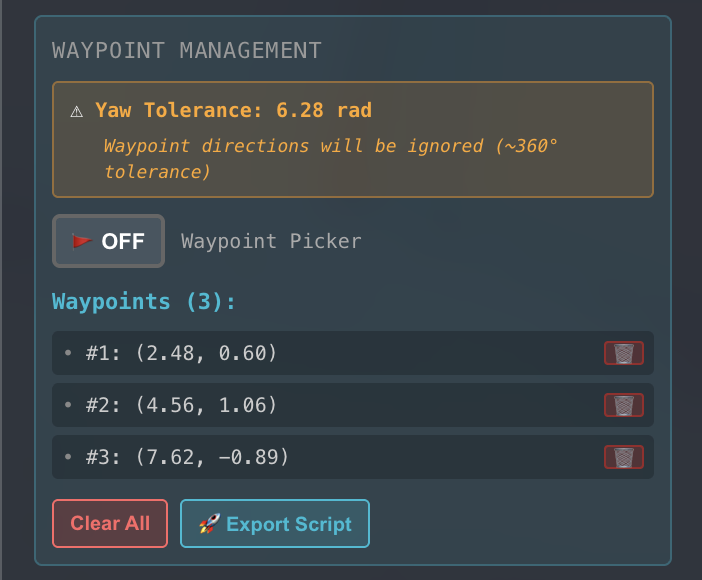
- Export the waypoint script from the visualizer. In the Waypoint Management section of the Nav2 Control Panel, click Export Script.
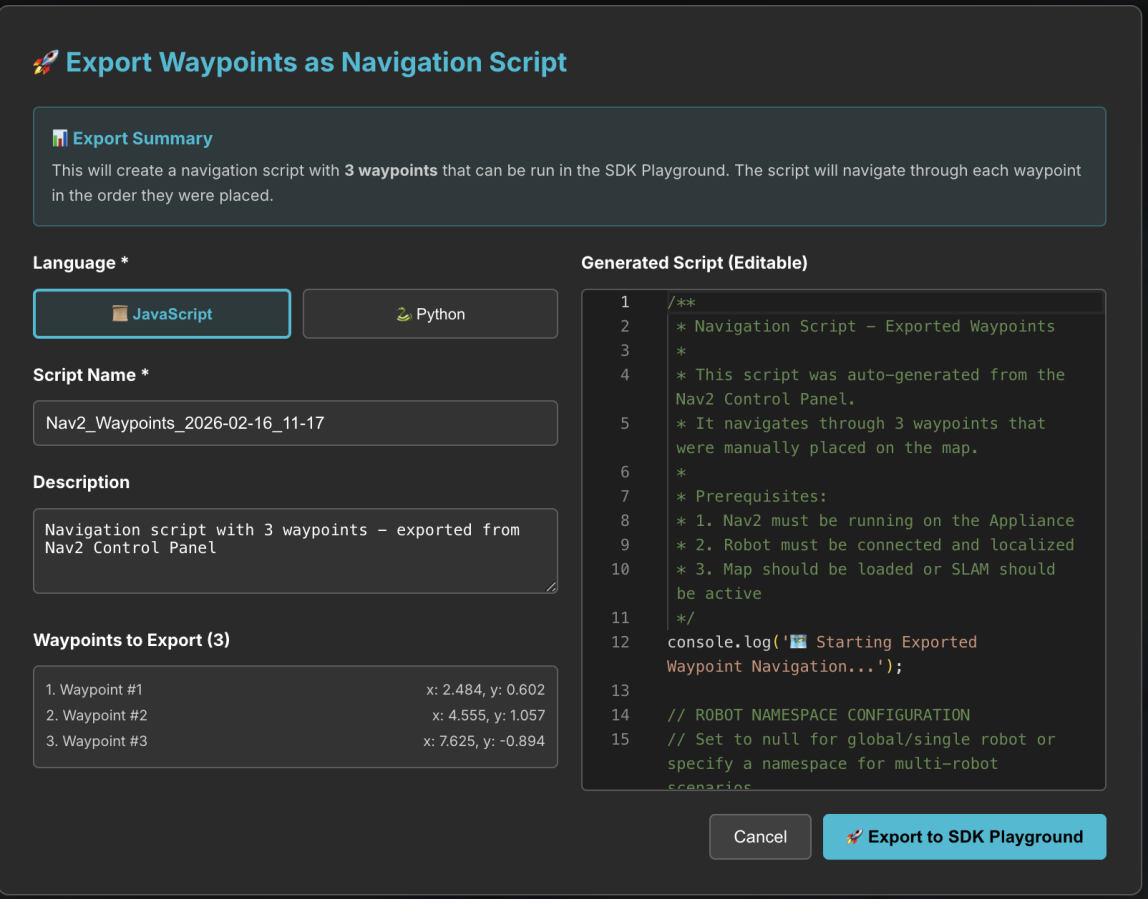
- When prompted, give the script a name (or keep the default) and click Export to SDK Playground.
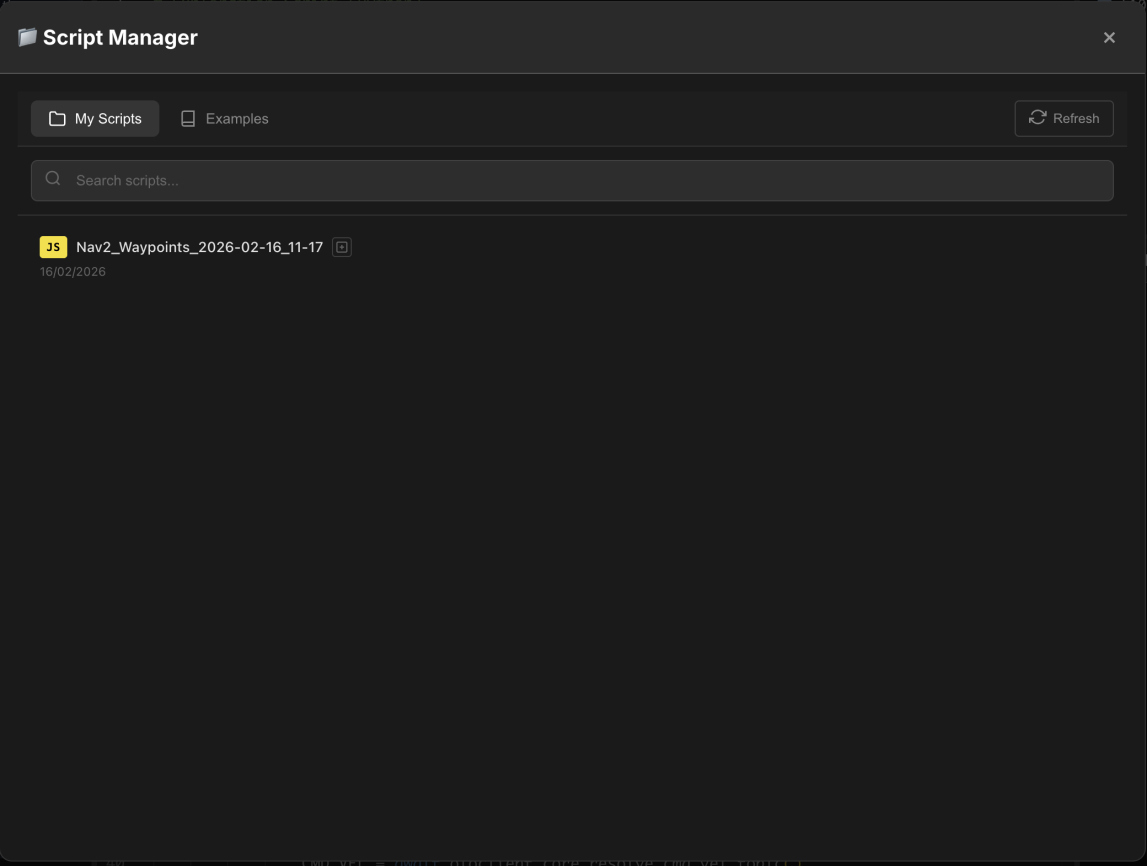
- Open the SDK Playground and click Scripts in the top menu. Your saved script will appear in the Script Manager window.
-
Select the script and load it into the SDK.
-
The script loads into the Code Editor in the centre.
You can read through the code and edit it directly.
- On the left, the AI suggests changes based on the connected robot. Use one of these or type your own prompt.
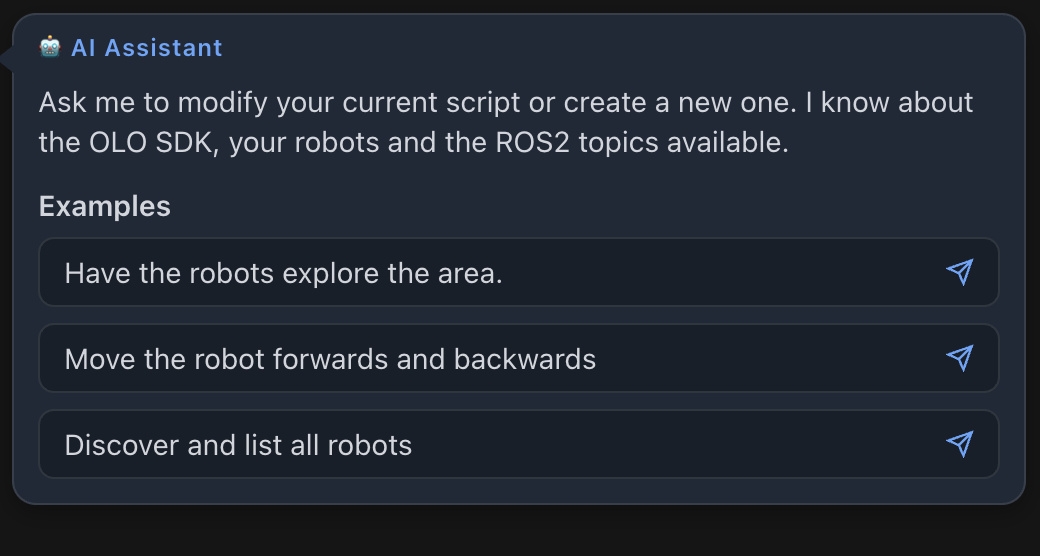
- When you prompt the AI, it may ask follow-up questions to clarify what you want.
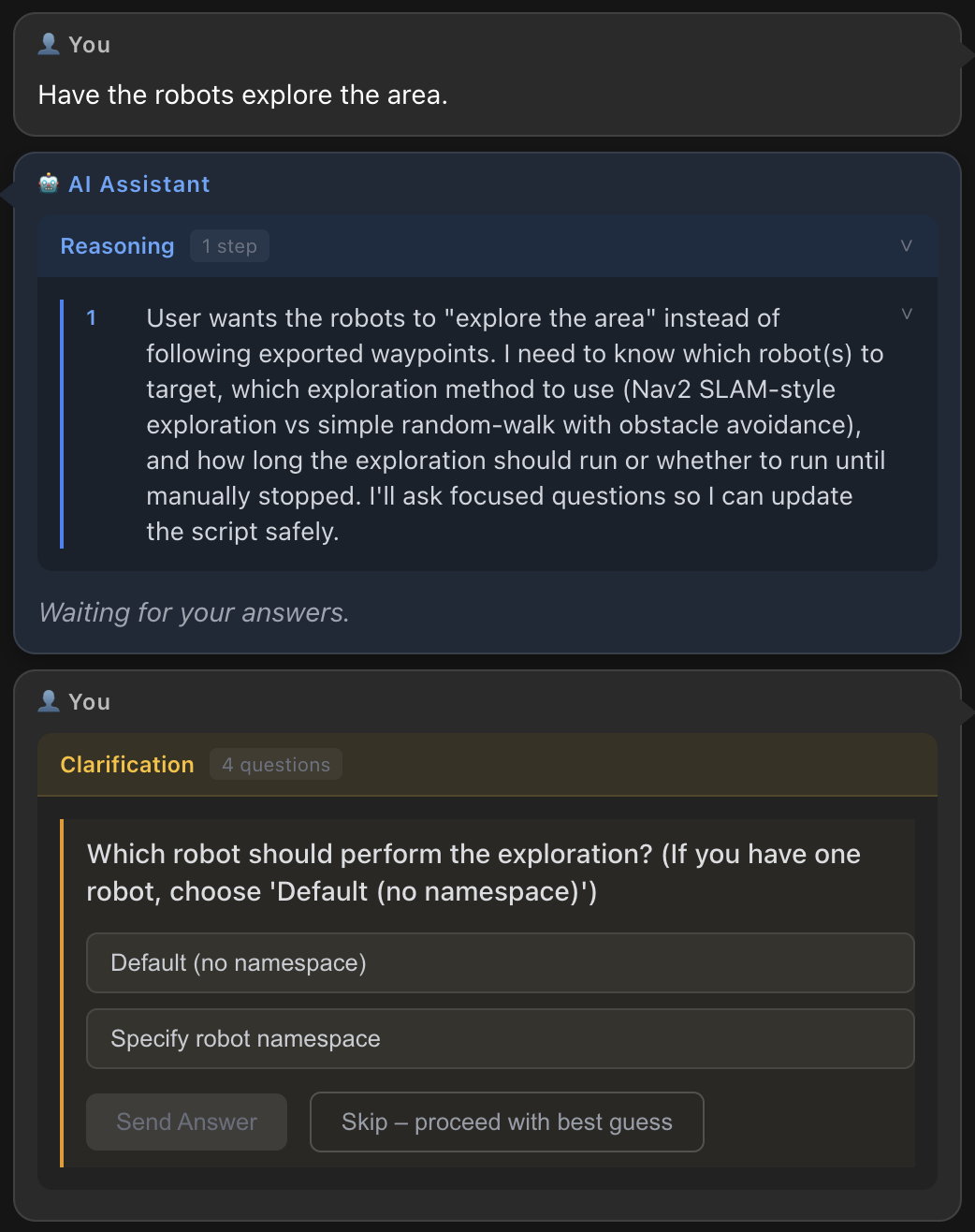
-
Answer until the AI summarises its plan and applies changes to the code. Additions are shown in green, removals in red.
-
If you’re happy with the changes, accept them using the button at the top, then click Execute to run the script.
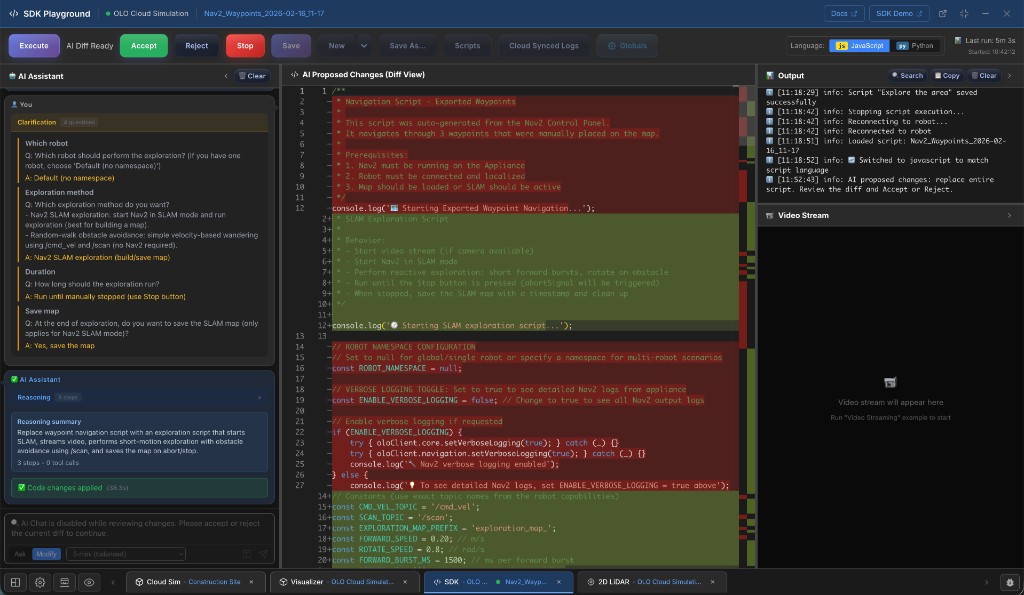
-
Output logs from the running script appear in the top-right panel. Switch to the visualizer to see the robot following the script.
-
To stop the script, click the red Stop button at the top.
-
To save this version, click Save As… at the top and enter the details.