
Tutorials
Scheduling Scripts
Run scripts immediately or on a schedule from the Automation panel.
This tutorial assumes you are familiar with the SDK Playground and with loading and saving scripts. You need at least one saved script.
Steps
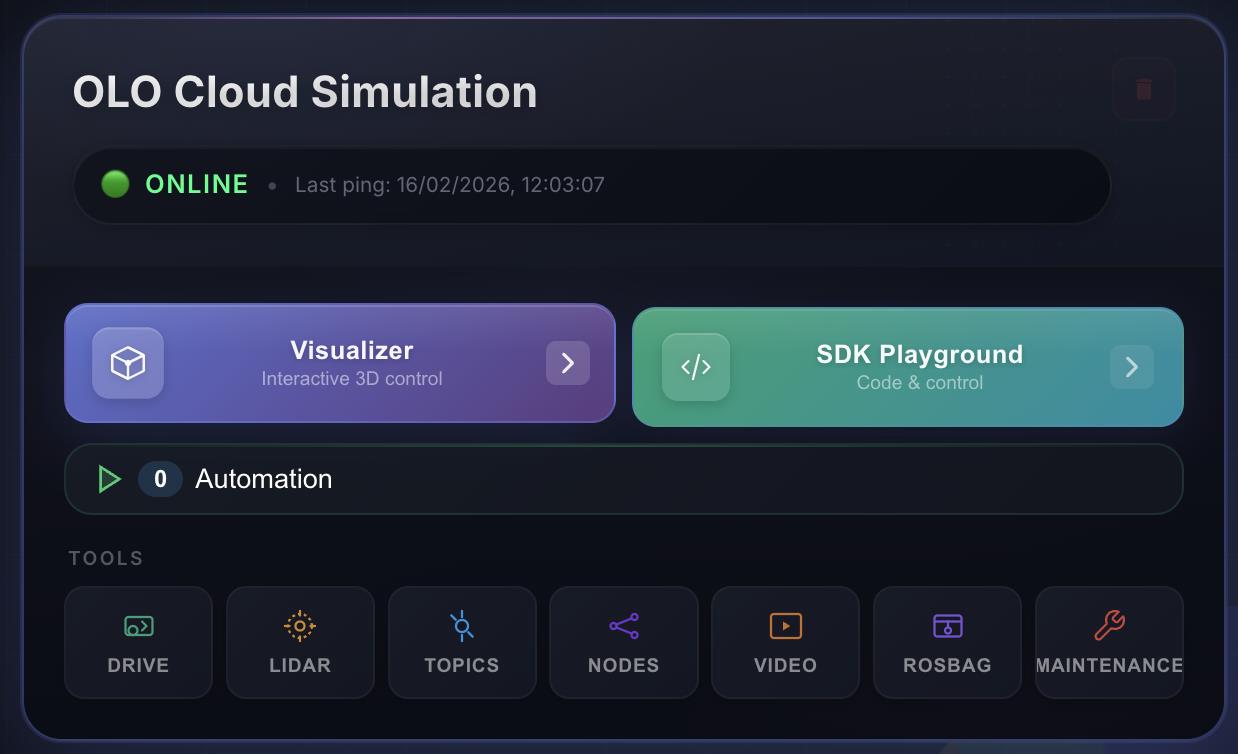
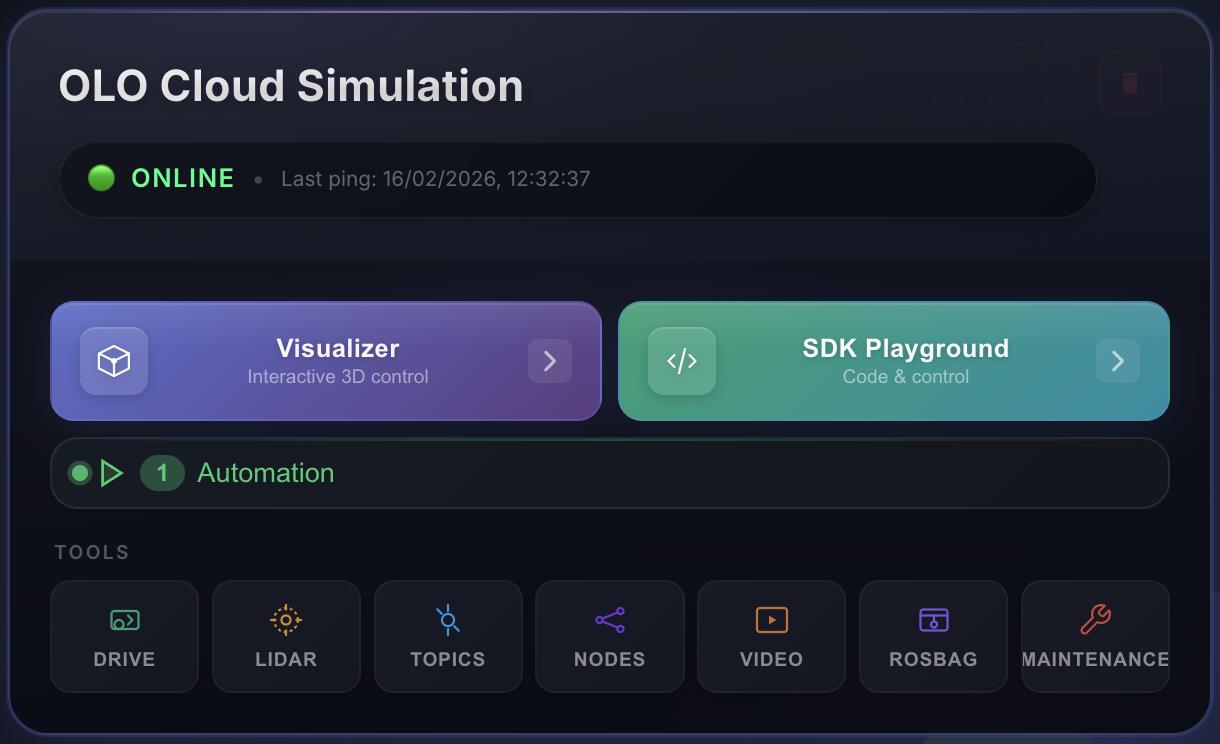
- On the dashboard, select Automation in the robot control panel.
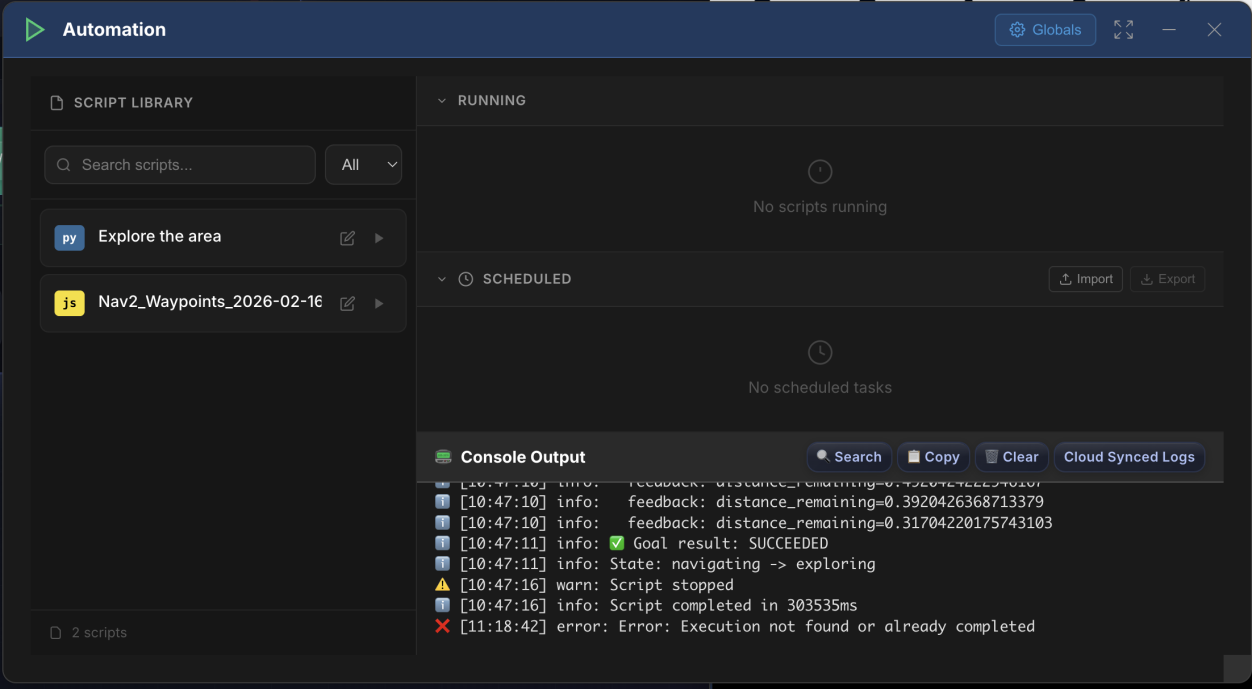
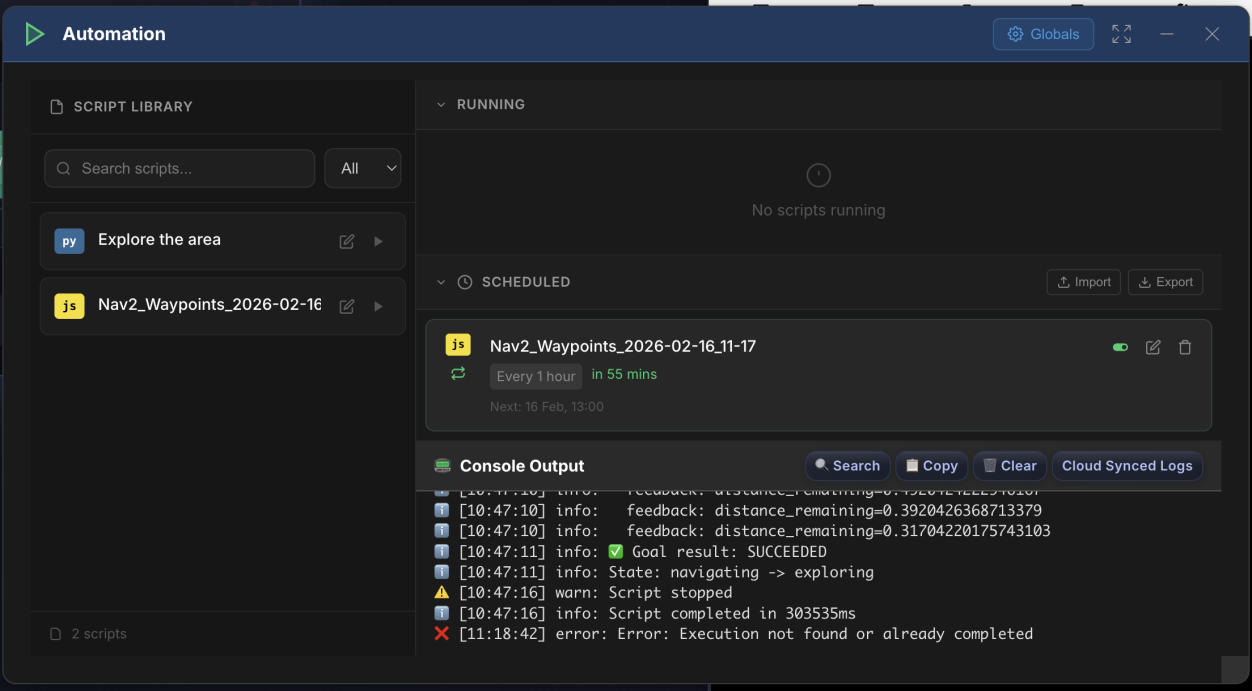
- The Automation control panel opens. Your saved scripts are listed. Select the script you want to schedule.
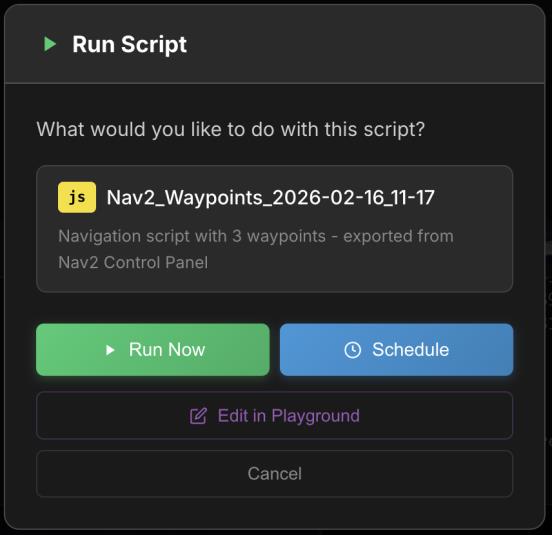
- You can run the script immediately or schedule it.
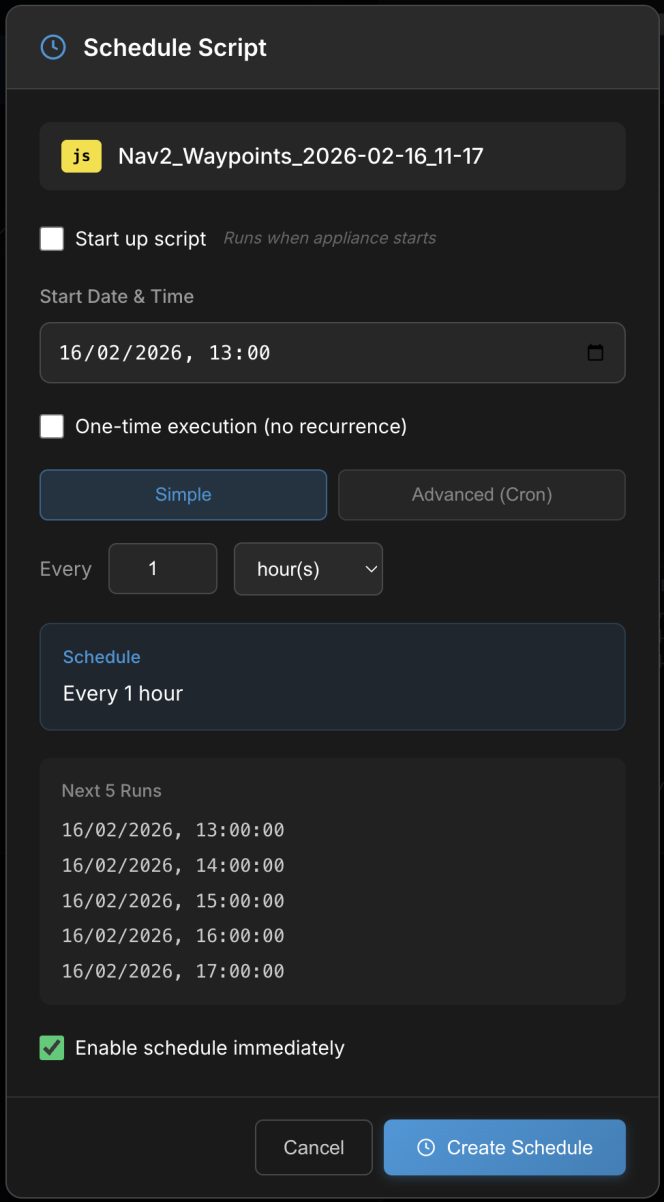
- To schedule, set the timing options (e.g. interval or cron).
- After scheduling, the job appears in the Automation control panel. You can see when it will run next and use the options to turn it off or delete it.
- When a script is running, this is shown next to the Automation button on the robot control panel on the dashboard.
- The Console output in the Automation control panel shows logs while the script runs. Open the Automation panel to see which script is running and to stop it if needed.